
Quick answer
how to redesign a room with AI: the short answer
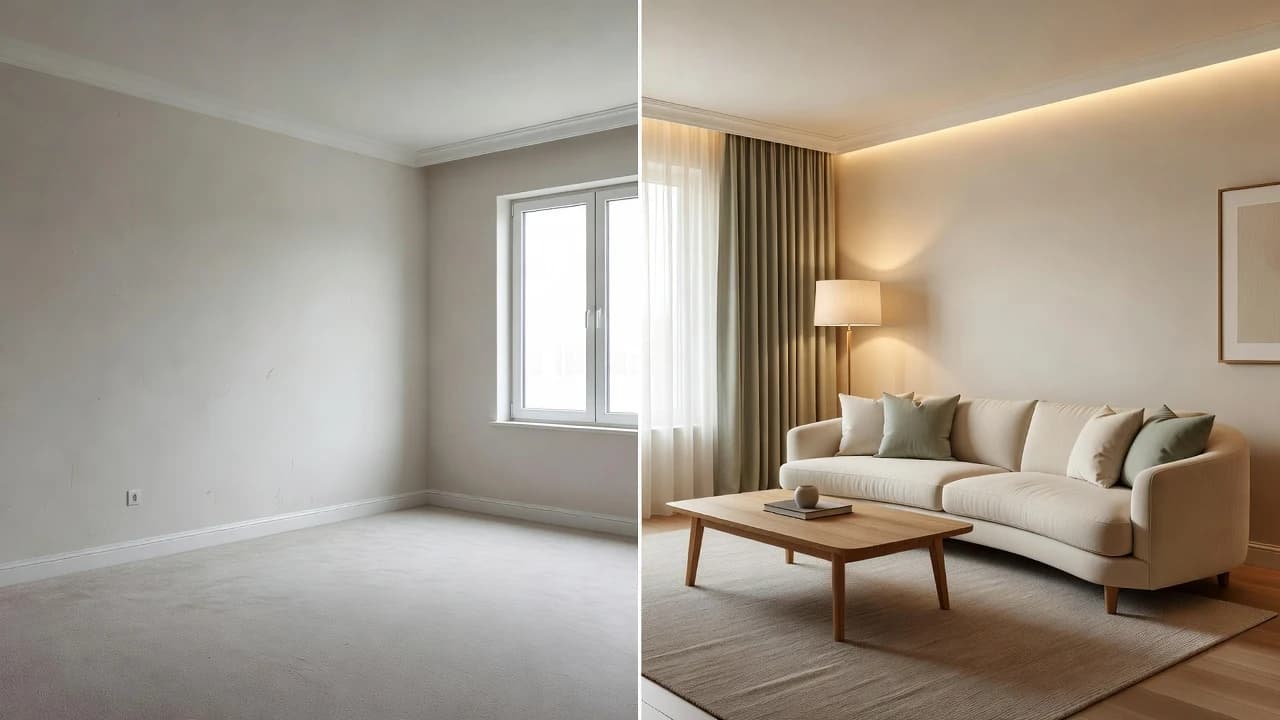
To redesign a room with AI, take a bright, level photo, open DecorAI, upload the image, choose a coherent interior style, and generate a room makeover. Compare the result with your original, identify the high-impact ideas, verify measurements and safety, then save the concept as a visual brief. The creative step can take minutes; real-world planning still deserves care.
Before You Redesign a Room With AI
Begin with a question, not a style name. What feels wrong in the current room? It may be too dark, visually busy, awkward for conversation, short on storage, or simply disconnected from the rest of your home. A specific problem helps you judge an AI result. Without one, it is easy to prefer the most dramatic image even when it does not solve the reason you started.
Next, decide the level of change you are willing to make. A renter may limit the brief to furniture placement, rugs, art, curtains, removable color, and lighting. A homeowner may be open to paint, built-ins, flooring, or cabinetry. DecorAI can help visualize a mood and direction, but the generated result does not know your lease, budget, product availability, building rules, or hidden services. Those constraints belong in your review.
Step 1: Take a Clear Photo of the Whole Room
Stand near a doorway or corner where the camera can see two walls, part of the floor, and the main window or light source. Hold the phone level at roughly chest height. A tilted camera makes vertical walls converge, while an extreme wide-angle view stretches furniture near the edges. You do not need professional equipment; you need a readable picture of the space.
Use daylight when possible, but avoid pointing directly into harsh sun. Turn on existing lamps if they help reveal dark corners. Remove temporary clutter such as bags, laundry, and open boxes, yet keep the furniture you expect to retain. The AI needs visual context, and you need an honest before image. Photographing an artificially empty room can hide the practical storage or circulation problem you want to solve.
- Clean the phone lens before shooting.
- Show complete furniture pieces instead of cutting them at the frame edge.
- Avoid people, pets, mirrors reflecting the photographer, and sensitive personal information.
- Take two or three angles, then choose the clearest image for the first experiment.
Step 2: Upload the Room Photo to DecorAI
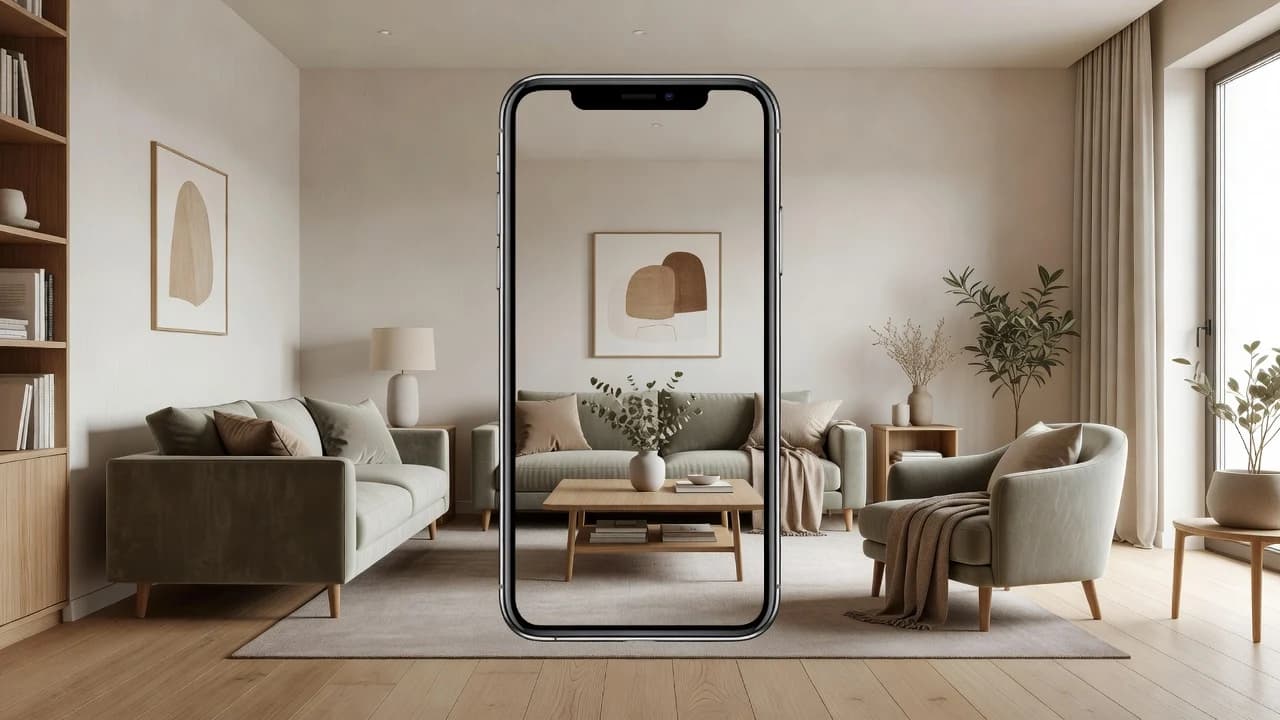
Open DecorAI on your iPhone or Android device and select the room photo you want to explore. Start with a single representative angle. Using one image for a small set of style tests makes comparison easier because the architecture and viewpoint stay consistent. If you switch angles every time, you may confuse a better composition with a better design direction.
Check the image once more before generating. Can you see the problem area? Is the room bright enough to understand? Does the photograph include anything private that should not be uploaded? A few seconds of review can save several unhelpful generations. For important privacy and processing details, read the DecorAI privacy policy linked in the site footer before using the service.
Step 3: Choose the Right Interior Design Style
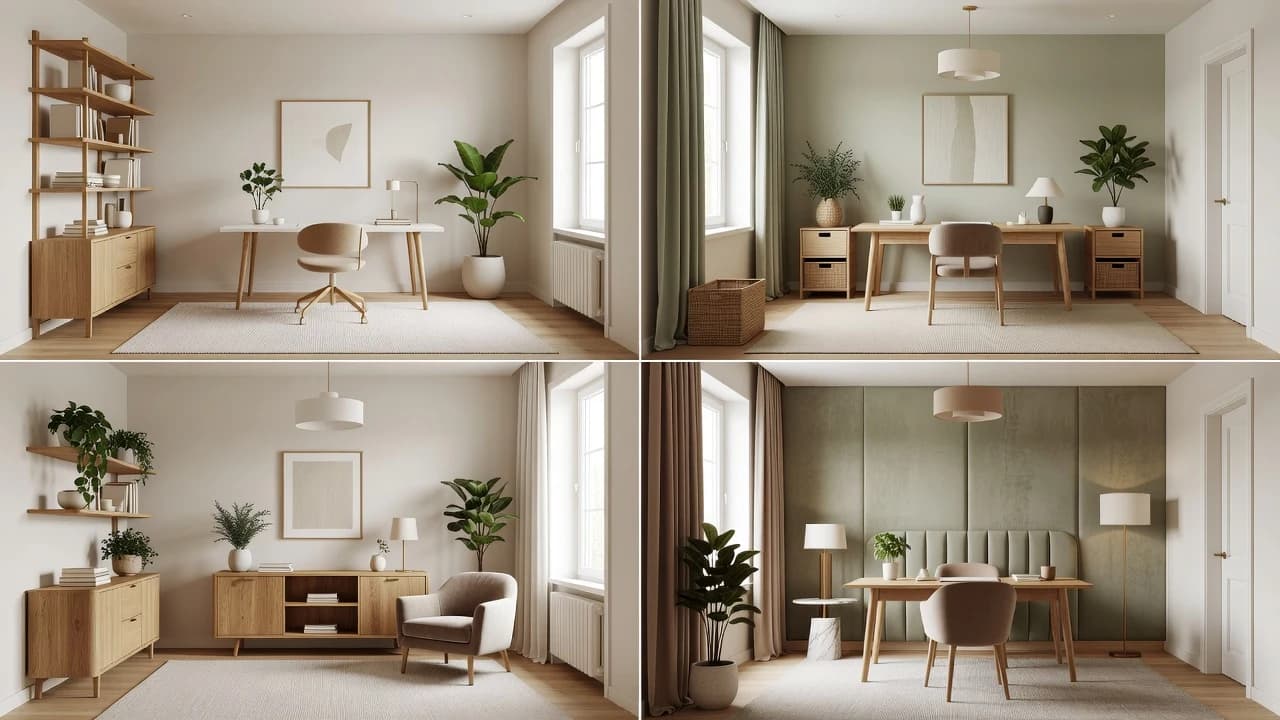
Choose a style for its design logic, not because its name is fashionable. Scandinavian rooms often emphasize light, function, and simple forms. Japandi combines restraint with warm natural materials. Modern organic design tends to introduce curves, stone, wood, linen, and earthy variation. Boutique-inspired rooms may use deeper contrast, layered lighting, and more decorative focal points. Each option changes several visual variables together.
If you are unsure, create three related directions. Try warm minimalist, Japandi, and Scandinavian rather than jumping from maximalist color to industrial concrete to a coastal theme. Related concepts help you isolate preference. You may learn that you consistently choose pale oak, softer lighting, and fewer small accessories regardless of the label. That pattern is more actionable than deciding you are a single style type.
Step 4: Generate and Compare AI Room Makeovers
Generate the first concept, then pause. Do not judge it only by whether it looks expensive or polished. Compare it with your one-sentence brief. Did the room become warmer? Is circulation clearer? Does the proposed furniture feel appropriate for the room’s apparent scale? Are the fixed elements still recognizable? Write down the useful moves before producing another image.
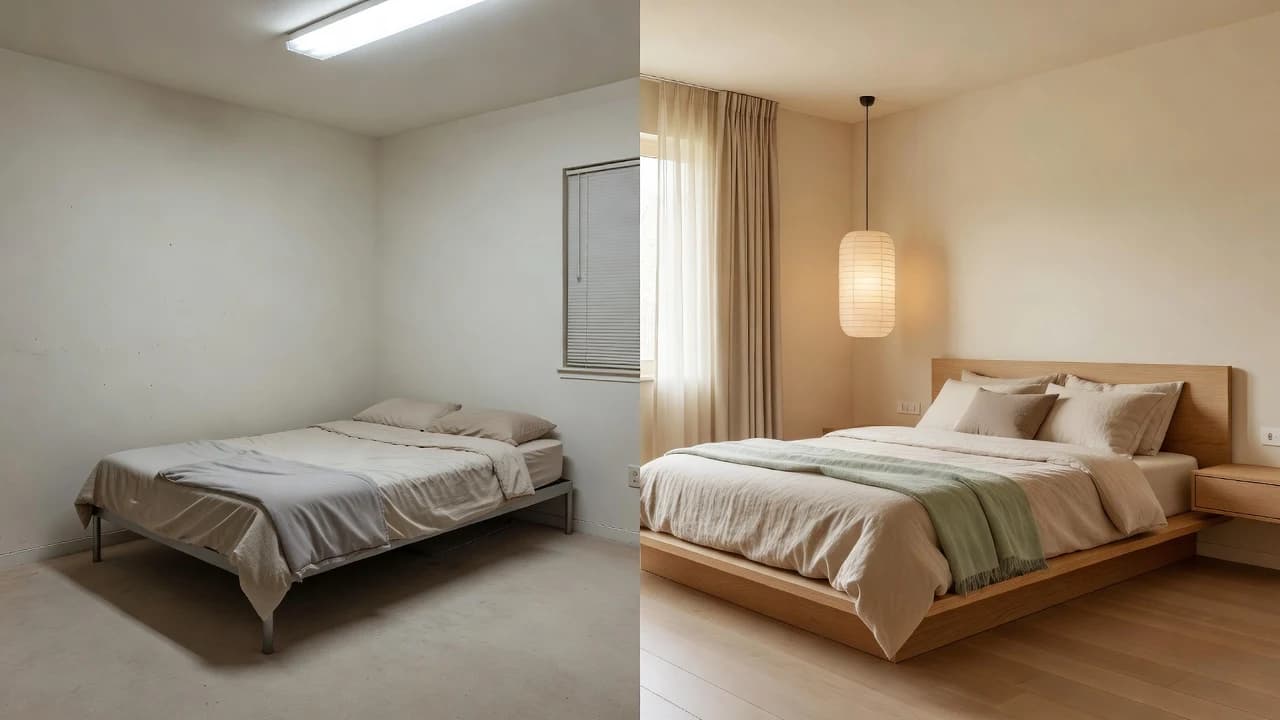
Create a small comparison set using the same original photo. Three to five concepts are usually enough for a focused session. Too many alternatives can make every detail compete for attention. DecorAI’s before-and-after approach is valuable here because it keeps the starting room visible. Look for repeated ideas across your favorites: perhaps all use a larger rug, fewer colors, higher curtains, or one substantial light fixture.
Use a five-part room scorecard
- Function: does the concept support how the room is actually used?
- Mood: does the light, color, and texture create the intended feeling?
- Continuity: can you still recognize the room and its important fixed elements?
- Feasibility: could the main idea work within your likely budget and permissions?
- Safety: are routes, windows, heaters, outlets, ventilation, and stable furniture respected?
Step 5: Extract the Ideas That Make the Biggest Difference
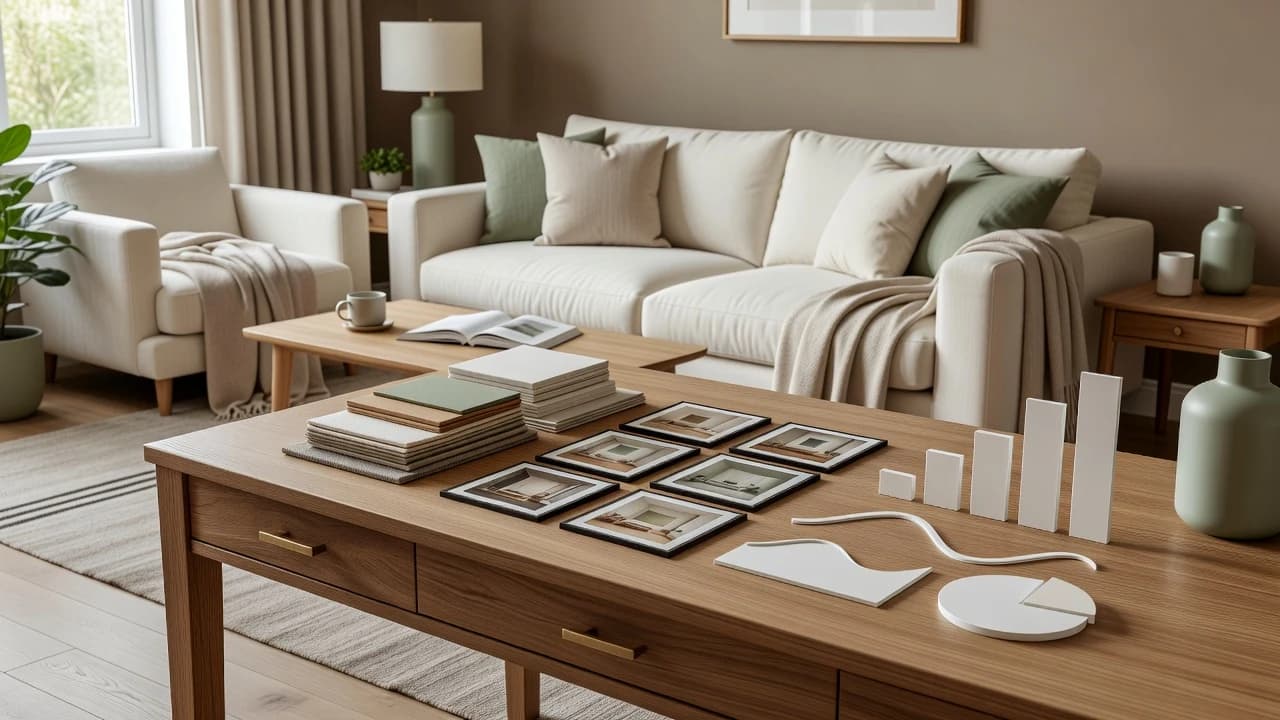
Treat the generated image as a collection of principles rather than a shopping photograph. Name the three changes doing most of the visual work. In many rooms, those are scale, contrast, and lighting: a rug large enough to connect the seating, a tighter palette with one dark anchor, and light at more than one height. Your concept may highlight different levers, such as closed storage or lighter window treatments.
Separate structural-looking changes from decorative ones. AI may show a wider opening, moved window, recessed lighting, or floating cabinetry even when you asked for a simple refresh. Do not assume those changes are practical. Put them in a professional-review list. Softer changes—paint direction, textiles, art scale, furniture silhouette, and accessory density—can be translated into samples and measurements without treating the image as a construction drawing.
Step 6: Verify Measurements, Materials, and Safety
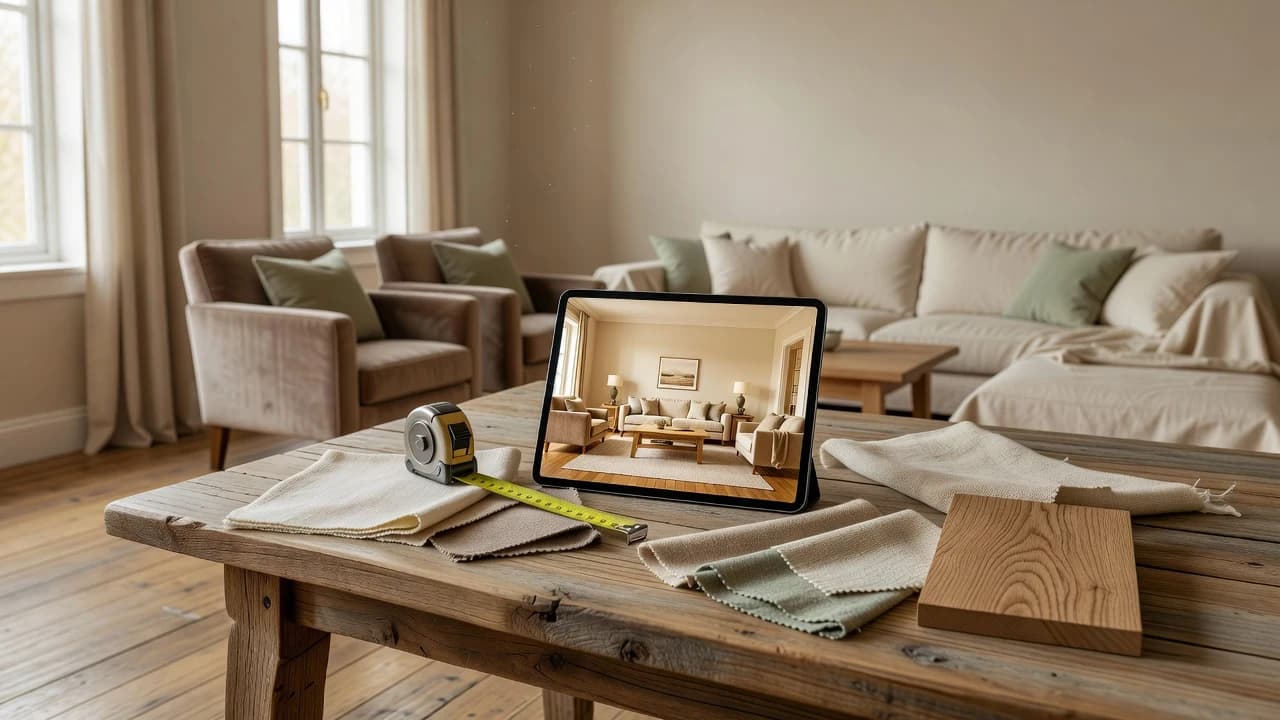
Measure the real room and every existing item you plan to keep. Mark door swings, radiators, vents, outlets, and walking routes. Then compare those facts with the concept. A sofa that looks balanced in an AI image may not exist in that exact size. A pendant may need electrical work. A cabinet may block an air return. Verification is what converts inspiration into responsible planning.
Order paint, fabric, flooring, and finish samples before making a large commitment. Screens change color, and generated images simulate materials rather than specifying them. View samples in the room during morning, afternoon, and evening light. If the project involves painting, flooring, demolition, or other renovation work, the U.S. Environmental Protection Agency recommends planning for ventilation and controlling dust and pollutants during remodeling.
Keep safety outside the aesthetic vote. Maintain clear exits, follow manufacturer instructions, anchor appropriate top-heavy furniture, and ask qualified professionals about structural, plumbing, gas, electrical, or code-related work. DecorAI provides visual inspiration; it cannot inspect the building or approve a renovation. The safest plan is often the one that keeps the creative concept while replacing an unrealistic detail with a verified alternative.
Step 7: Build a Practical Room Makeover Plan
Organize the work in layers. Begin with repairs, cleaning, and anything affecting safety. Continue with paint or other background surfaces, then lighting, large furniture, textiles, and finally decor. This order prevents a small accessory purchase from dictating a much larger decision. It also gives you useful stopping points: the room may already feel complete before every object in the generated scene is represented.
- 1Phase 1 — Keep and clear
Decide what stays, remove temporary clutter, and identify repairs.
- 2Phase 2 — Verify
Measure the room, test samples, confirm permissions, and consult professionals where needed.
- 3Phase 3 — High-impact changes
Address palette, lighting, rug or floor area, major furniture, and storage.
- 4Phase 4 — Finish slowly
Add curtains, art, plants, cushions, and smaller decor only after the foundation works.
Start Your AI Room Makeover
You now have a complete answer to how to redesign a room with AI: define the problem, photograph the whole space, upload it to DecorAI, choose a coherent style, compare a small set of makeovers, extract the strongest ideas, verify the real-world details, and save a visual brief. The sequence is simple because each step has one job.
Choose the room that bothers you most or the one you are already planning to update. Take a clear photo in daylight and download DecorAI from the official Apple App Store or Google Play listing. Your first result does not need to be the final answer. It only needs to help you see a better next decision.
Frequently Asked Questions
How do I redesign a room with AI?+
Upload a clear room photo to DecorAI, choose a style, generate several related concepts, compare them with the original, and verify measurements and safety before acting.
Can I redesign a room with AI from one photo?+
Yes. One clear photo is enough to begin exploring a visible design direction, although additional angles and real measurements are still useful for planning.
Does an AI room image contain accurate measurements?+
No. Treat the result as visual inspiration. Measure the real room and verify product dimensions, building services, materials, and feasibility independently.
Which rooms can I redesign with DecorAI?+
DecorAI can help explore ideas for living rooms, bedrooms, kitchens, bathrooms, home offices, small apartments, and other interior spaces visible in a room photo.
Sources and Editorial Notes
DecorAI links to independent public guidance for responsible planning. These are informational sources, not affiliates or competing products.